
Welcome to your BuzzButtons!
Follow the steps below to activate, assign, and start collecting personalized reviews with just a tap.
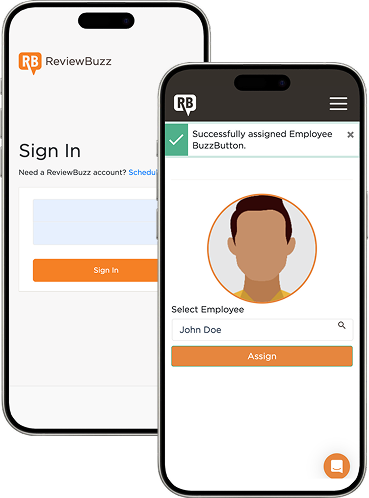
Initial Setup: Activating and Assigning Your BuzzButtons
Step-by-Step Instructions:
- Tap the BuzzButton with your phone or scan its QR code. You’ll be redirected to the ReviewBuzz login page.
- Log in using your admin credentials. After login, you’ll be taken to the BuzzButton Employee Assignment page.
- Select the employee you want to assign the button to from the dropdown list.
- Click “Assign” to complete the setup.
- Your BuzzButton is now ready to use!
- Repeat the steps above for all other BuzzButtons in your order.
Once assigned, each BuzzButton will always link to that employee’s unique BuzzLink when tapped or scanned.
How to Check Which BuzzButtons Are Assigned
To confirm, tap or scan the button again — you should be redirected to the assigned employee’s review request page.

For iPhone users: When tapping, simply hold the BuzzButton near the top momentarily to trigger the request.
For non-iPhone users: When tapping, simply hold the BuzzButton near the top or center momentarily to trigger the request.
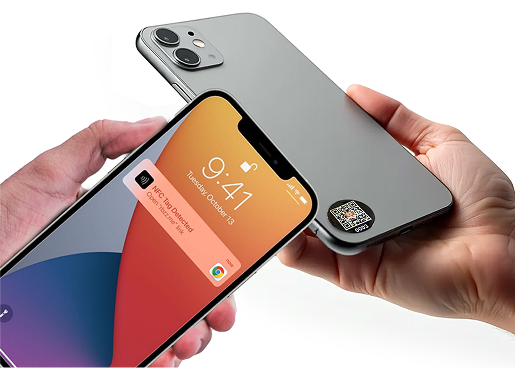
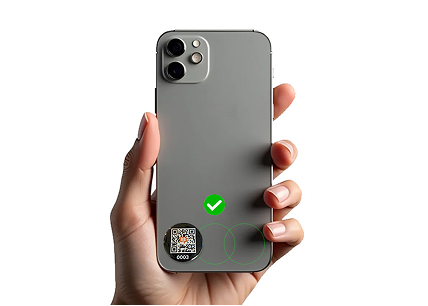
Important: Correct Placement Spots on Smartphones
Place the button at or near the bottom to avoid unintended triggers.

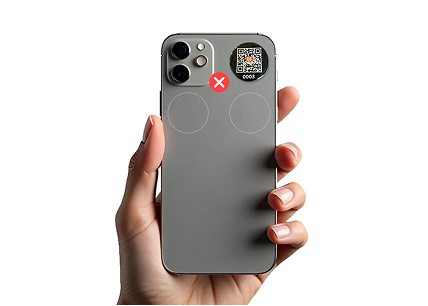
Do NOT place the BuzzButton at the top of the phone.
Frequently Asked Questions
What if a customer’s phone doesn’t support NFC?
They can scan the QR code printed on the BuzzButton — same experience, just scan instead of tap.
Do techs need to do anything during setup?
Nope! Admins handle the setup. Once assigned, techs just stick BuzzButton on their device and tap when ready.
Will this work with our existing CRM or system?
Yes. The BuzzButton works independently, but we can integrate review data with your current system or dashboard if needed.
How are reviews tracked?
Reviews are tied to the tech through the unique BuzzButton number assigned to them in your dashboard.
Is it secure?
Yes! No personal information is stored on the button — it's just a shortcut to the employee’s review page.
Can I reassign a BuzzButton if someone leaves?
Yes — just go to Toolkit > BuzzButton in your dashboard, unlink the tech, and follow the setup steps to assign it to someone new.
What’s Next After Activating Your BuzzButtons?

No More Excuses: Get Your Techs Asking in Just 15 Minutes

Help Us Improve!
Need Help?
We’re always happy to help if you run into any issues or need further assistance. Chat with us from your dashboard